Storage with Mosaic Hosting Service
Introduction
Mosaic Hosting Service provides Cloud Storage for each Mosaic environment. An environment can have an Azure Storage Account, an AWS S3 Storage, or both, each in a region you choose.
You get direct access to the storage, so you can use it with any tool or SDK of its provider, such as Azure Storage Explorer or the AWS CLI. You can also use the storage as an origin for video streaming through a CDN.
There are three ways to reach the data:
| Access | What it allows | Lifetime | Typical use |
|---|---|---|---|
| Public read | Anonymous reads of objects by their URL. Listing is never allowed. | Until you switch it off | Players, CDN origin |
| Temporary access | Credentials limited to chosen containers and permissions | 15 minutes to 12 hours | Tools, scripts, pipelines |
| Storage key | Full access to all containers | Until you regenerate it | Applications that cannot use temporary access |
The Video Service and the Image Service use the Azure Storage Account of the environment as "Mosaic Storage". The AWS S3 Storage can be used with your own applications and tools.
Enabling Cloud Storage
- Go to the Admin Portal (https://admin.service.eu.axinom.com)
- Select the environment where you need storage
- In the list of services, select the Hosting Service
Hosting Service Configuration
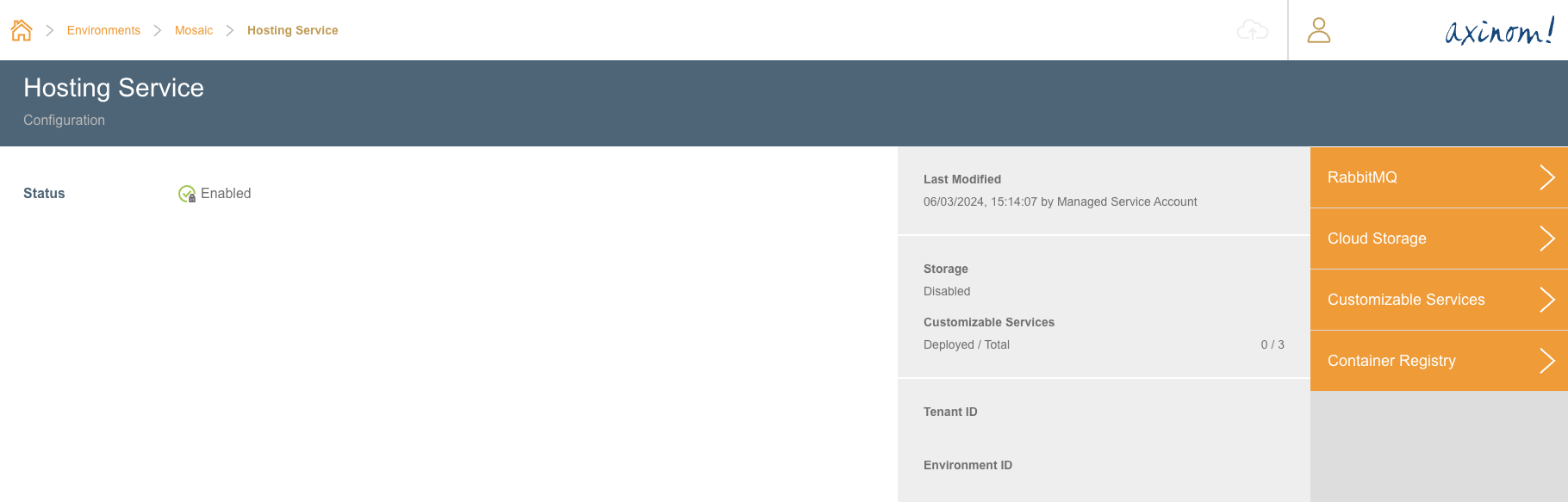
- In the action panel, click on Cloud Storage. The station lists the storage providers that are available for the environment, with the region, number of containers and consumption of each enabled storage.
Cloud Storage
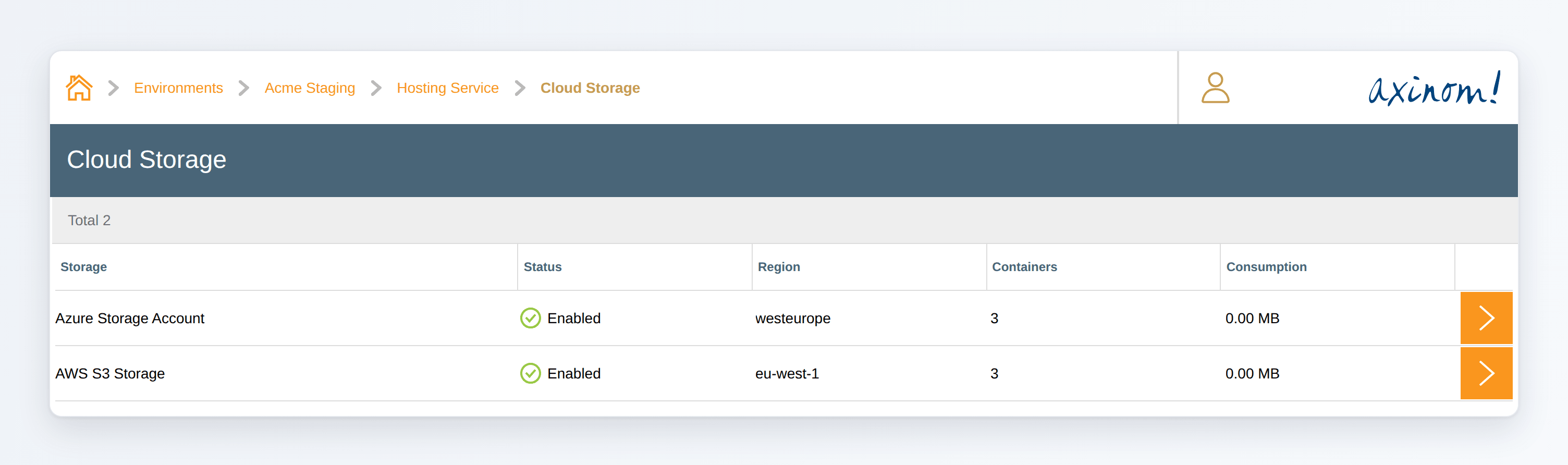
- Select the storage you need, choose the Region (on Azure: Location), and click on Enable S3 Storage (on Azure: Enable Storage Account). Creating the storage can take a few minutes.
Enabling the AWS S3 Storage

The region cannot be changed later. To move data to the other provider, enable its storage, copy the data and disable the old storage.
Storage Details
Once the storage is enabled, its station shows the credentials and the consumption:
- AWS S3 Storage: the region and the Access Key ID and Secret Access Key of the storage.
- Azure Storage Account: the location, the Storage Account Name, the Account Key and the Connection String.
- Current Consumption: the number of containers and their total size. AWS reports bucket sizes once a day.
AWS S3 Storage

Azure Storage Account
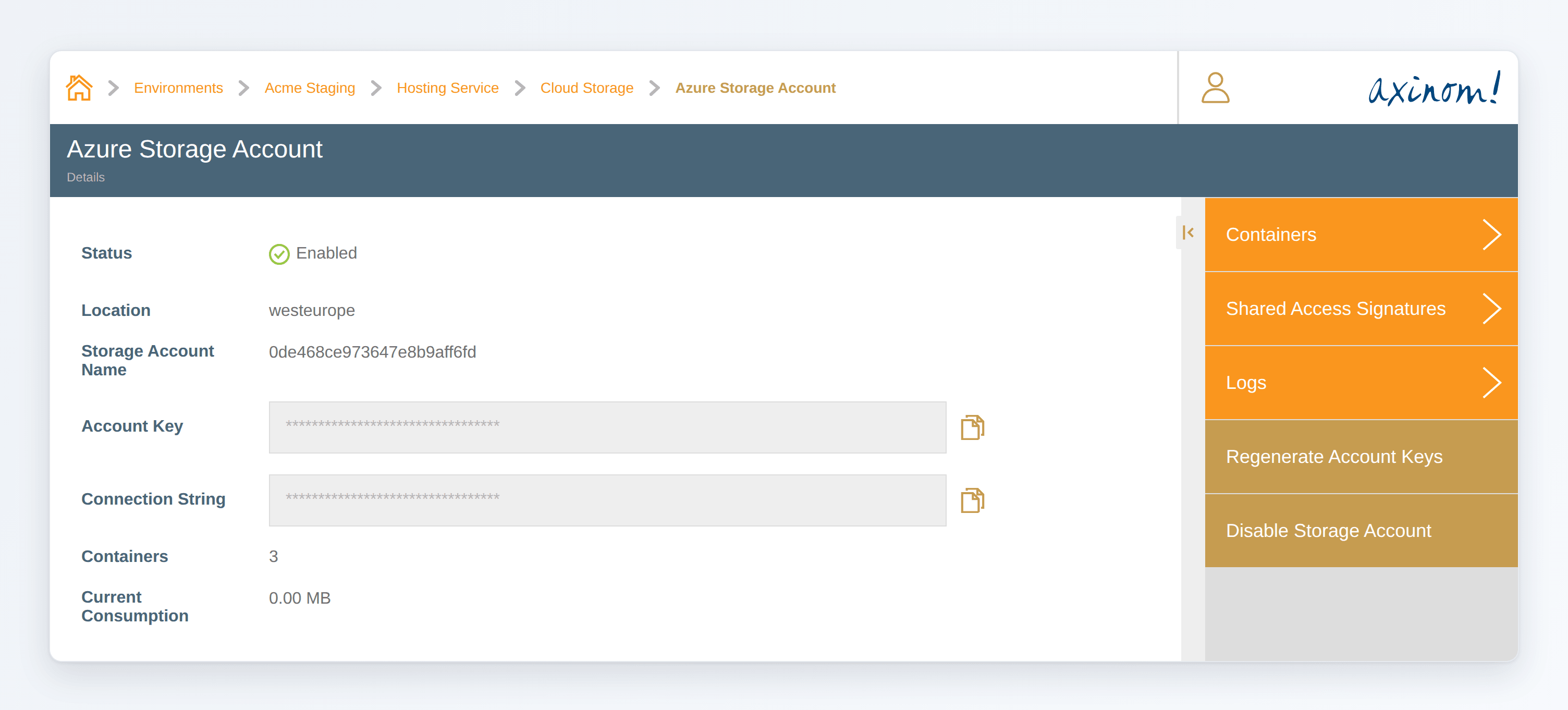
The storage key gives full access to all containers. Prefer temporary access for tools and scripts, and keep the storage key for applications that cannot use temporary credentials.
Containers and Buckets
The data of a storage is organized into containers. On AWS, each container is an S3 bucket. By default, the Hosting Service creates three containers:
| Container | Intended use | Public read access (default) | Details |
|---|---|---|---|
| video-input | Input for video encoding | no | Acquisition Profile of the Video service |
| video-output | Output of video encoding, possibly CDN origin | yes | Publishing Profile of the Video Service |
| image-sources | Images for batch ingest | no | Acquisition Settings of the Image Service |
You can use these containers or create new ones in the Containers (on AWS: Buckets) station.
Buckets
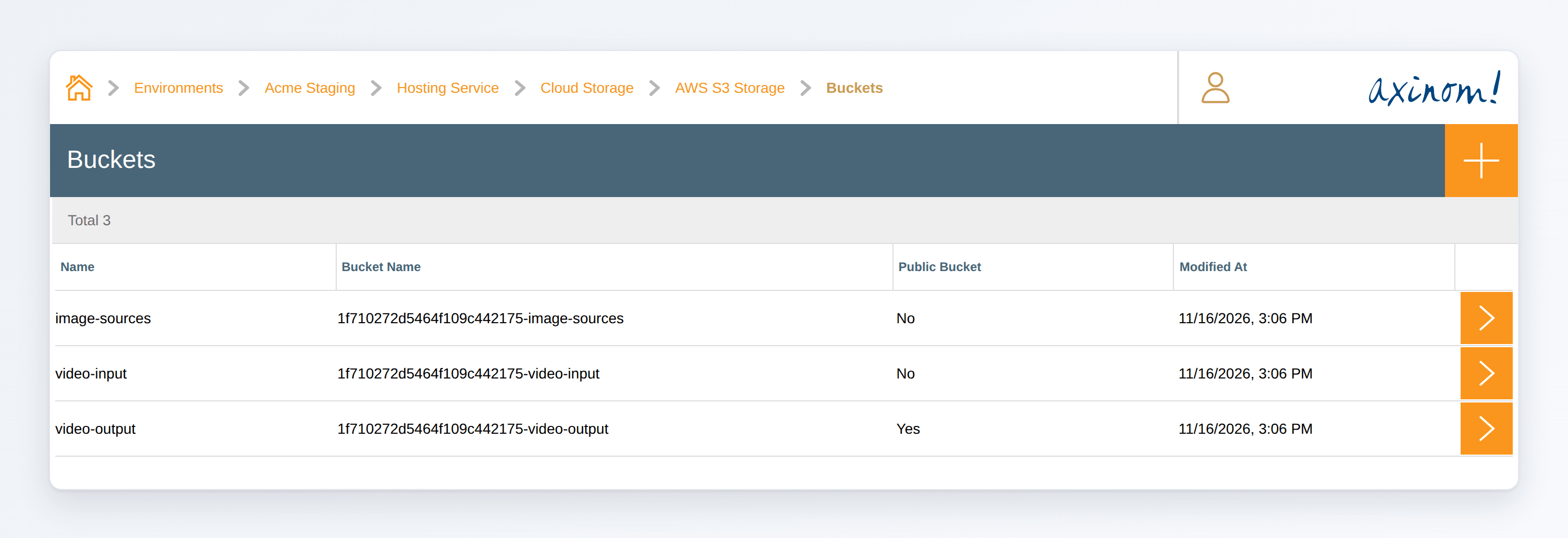
- Bucket names on AWS: the name of a bucket starts with the name of the storage, for example
2b07ecc8f4124fc892fe137c-video-input. Use the bucket name in your tools; the station shows it next to each container. Container names on AWS have 3 to 38 characters: lowercase letters, numbers and single hyphens. - Public read: a public container allows anyone to read its objects by URL, but never to list them. The container details show the URL to use, also as a CDN origin:
- Azure:
https://<storage account name>.blob.core.windows.net/<container> - AWS:
https://<bucket>.s3.<region>.amazonaws.com
- Azure:
Temporary Access
Temporary access gives credentials that expire on their own and only reach the containers and permissions you choose:
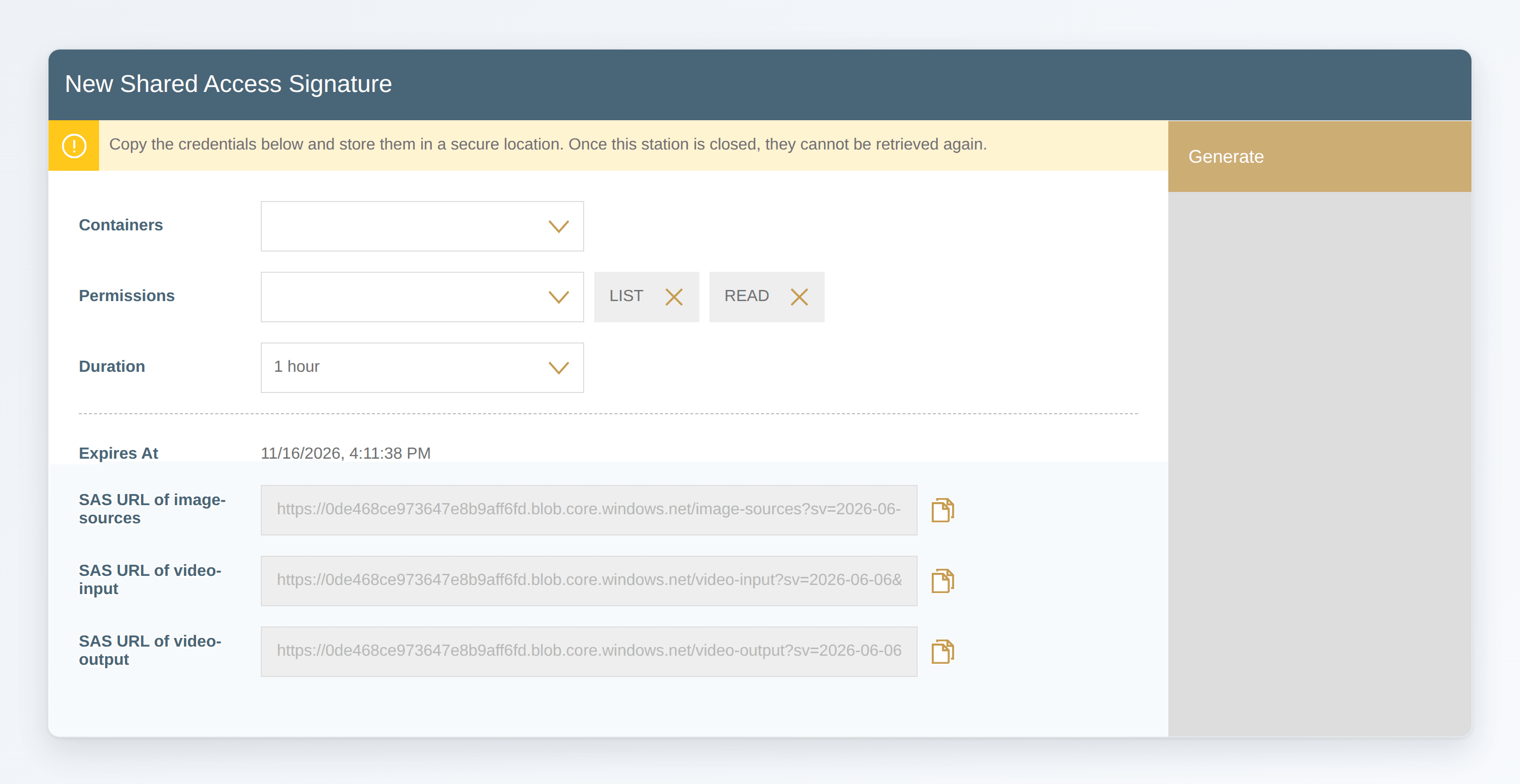
- Azure: a Shared Access Signature (SAS) URL for each chosen container, HTTPS only.
- AWS: Temporary Credentials (STS): an access key ID, a secret access key and a session token for all chosen buckets.
To create them, open Shared Access Signatures (on AWS: Temporary Credentials (STS)) from the storage station, or a container's details, and click on the + button:
- Containers (on AWS: Buckets): up to 10, or none for all of them.
- Permissions:
LIST,READ,WRITEandDELETE. - Duration: 15 minutes to 12 hours.
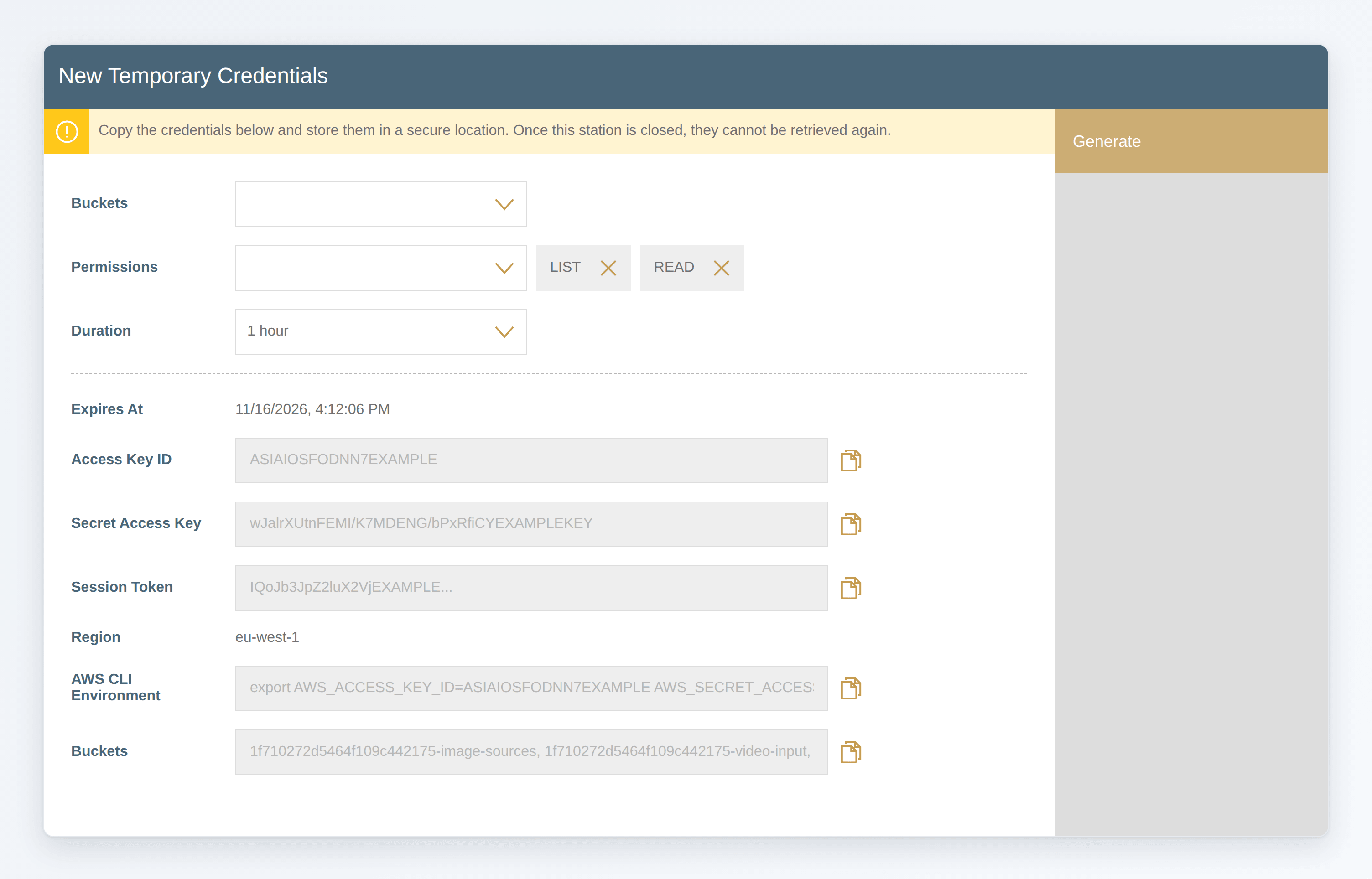
Click on Generate. The credentials are shown only once, so copy them right away.
New Temporary Credentials
New Shared Access Signature
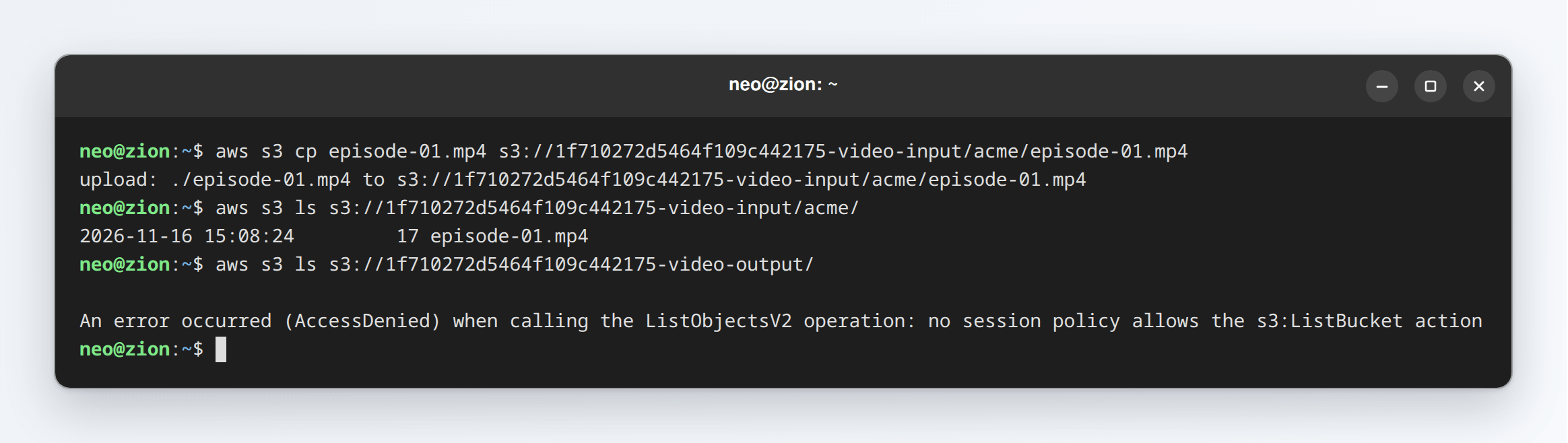
For the AWS CLI, copy the AWS CLI Environment and run it in your shell; it sets the credentials as environment variables. The Buckets field lists the bucket names to use. The credentials then work with any aws s3 command, within their buckets and permissions:
Using temporary credentials with the AWS CLI
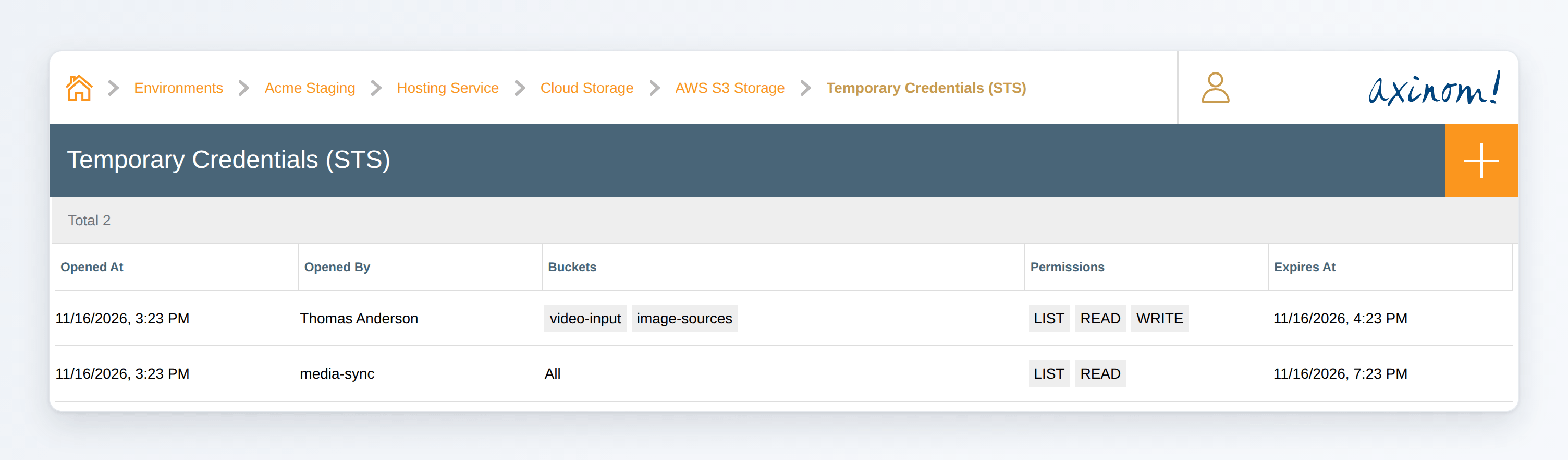
The station lists all temporary access issued for the storage: who created it, for which containers and permissions, and when it expires. The credentials themselves are not stored.
Temporary Credentials (STS)
Permissions
| Permission | Allows |
|---|---|
Storages: View | Viewing the storage, its containers, consumption, logs and the list of temporary access |
Storages: Edit | Also enabling and disabling the storage, managing containers, regenerating keys and creating any temporary access |
Storage Access: Read | Creating temporary access with LIST and READ |
Storage Access: Write | Creating temporary access with LIST, READ, WRITE and DELETE |
The Storage Access permissions don't allow seeing the storage keys or changing the storage. Give them to the service accounts of pipelines and tools that only need to move files.
Using the API
Applications can create temporary access with the openObjectStorageAccessSession mutation of the Hosting Service GraphQL API (https://hosting.service.eu.axinom.net/graphql):
mutation {
  openObjectStorageAccessSession(
    input: {
      provider: AWS
      containerNames: ["video-input"]
      permissions: [LIST, READ, WRITE]
      ttlMinutes: 60
    }
  ) {
    expiresAt
    containers {
      containerName
      bucketName
      url
    }
    s3Credentials {
      accessKeyId
      secretAccessKey
      sessionToken
      region
    }
  }
}
For Azure, use provider: AZURE; each container's url then carries its SAS.
Regenerating the Keys
Regenerate Access Keys (on Azure: Regenerate Account Keys) replaces the storage key. The old key and all temporary access issued before stop working; on Azure, this can take up to a minute. Update the applications that use the storage key with the new one.
Disabling the Storage
Disable S3 Storage (on Azure: Disable Storage Account) deletes the storage right away, with all of its containers and their content, after you confirm. Access ends first, and public containers stop being public before any data is deleted.
Disabling the AWS S3 Storage

Using Mosaic Storage
Any Mosaic service that supports storage can use the Azure Storage Account of the environment without additional configuration. Select "Mosaic Storage" as the storage provider, and specify the container and path.
For example, the Encoding Service can use Mosaic Storage as an input or output storage for videos, and the Media Service can use Mosaic Storage as a source for image files for batch ingest.
For your own applications and tools, use temporary access or the storage key of the Azure Storage Account or the AWS S3 Storage.